Connect a sensor
This guide explains how to connect a sensor to Visamic through MQTT. Connection speed and visualisation latency depend on the sensor, network, broker, and server. Start with a small test payload before connecting a production device.
Supported sensors
The application can expose several input types. This guide focuses on:
- MQTT
- Database queries
- LoRaWAN through MQTT
The exact input types and fields available depend on the current application configuration.
Two useful tools for experimenting with MQTT are:
- Mosquitto's official command-line clients:
mosquitto_pubpublishes messages andmosquitto_subsubscribes to a topic. - MQTT Explorer, a graphical MQTT client.
Configure an MQTT sensor
The sensor and Visamic must use the same MQTT broker and topic. You can use the Visamic broker or an external broker. Configure the connection from the Inputs or Devices area shown by your current application version.
Create the device
Select Devices from the main menu and choose Create.
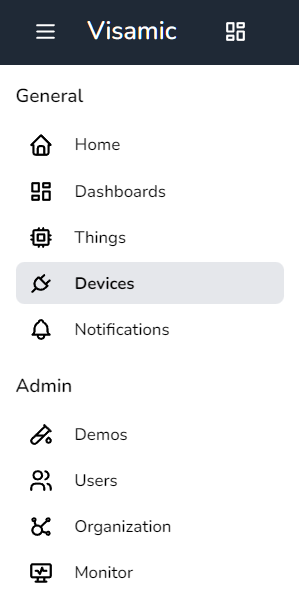
The Devices page lists configured devices and lets you select the type of device to add:
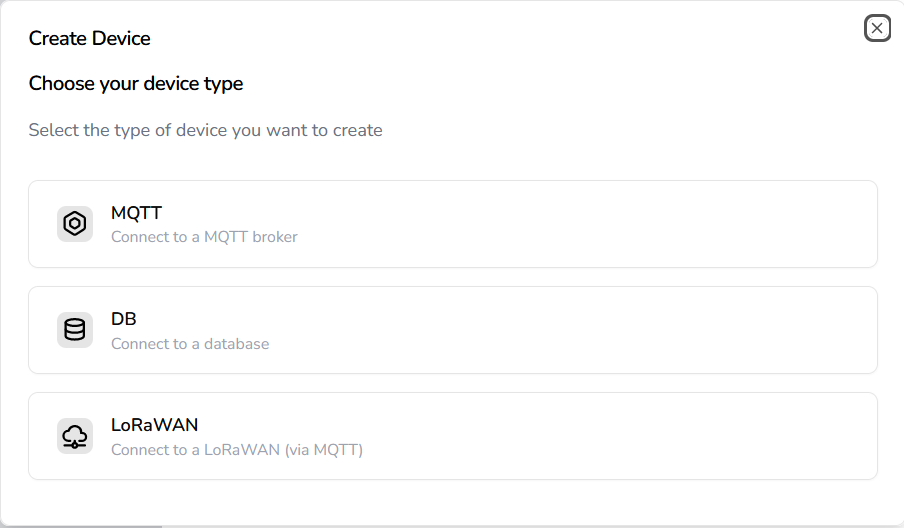
Select MQTT to open the connection form:
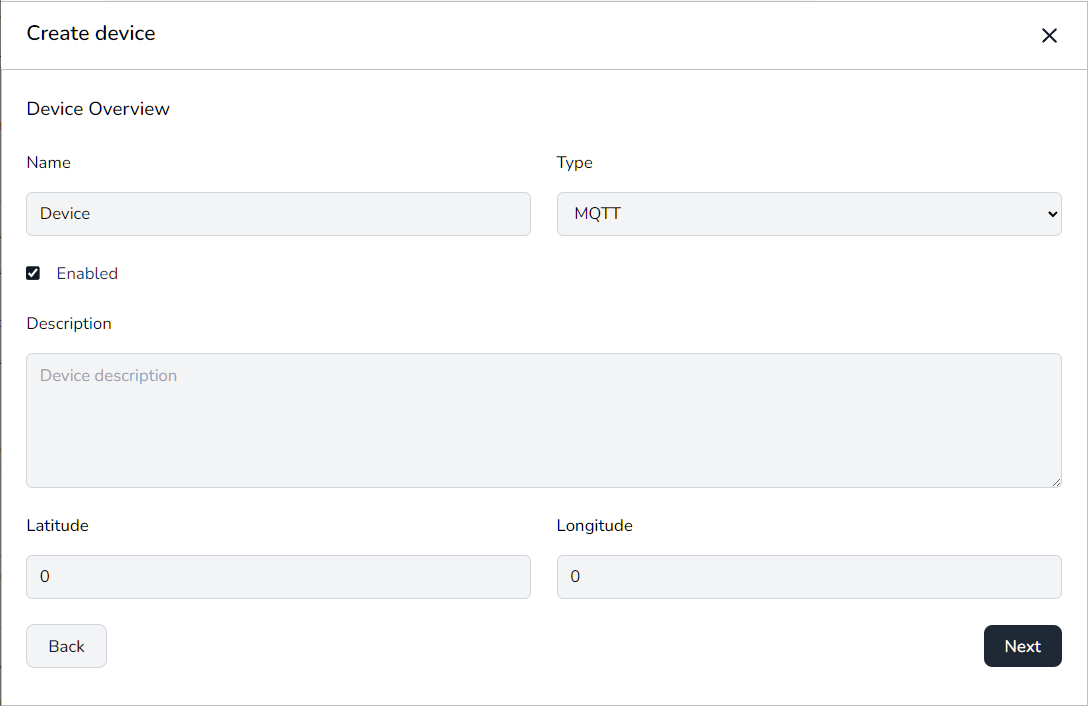
Complete the basic, location, and connection settings. Required fields show inline errors. When available, use Test to check the broker before saving. Review the summary and confirm that collection is enabled when required.
After creation, use the device detail page to review connection health and the enabled state. Open Logs when you need diagnostic information. Saved passwords and certificate contents should not be displayed in the configuration.
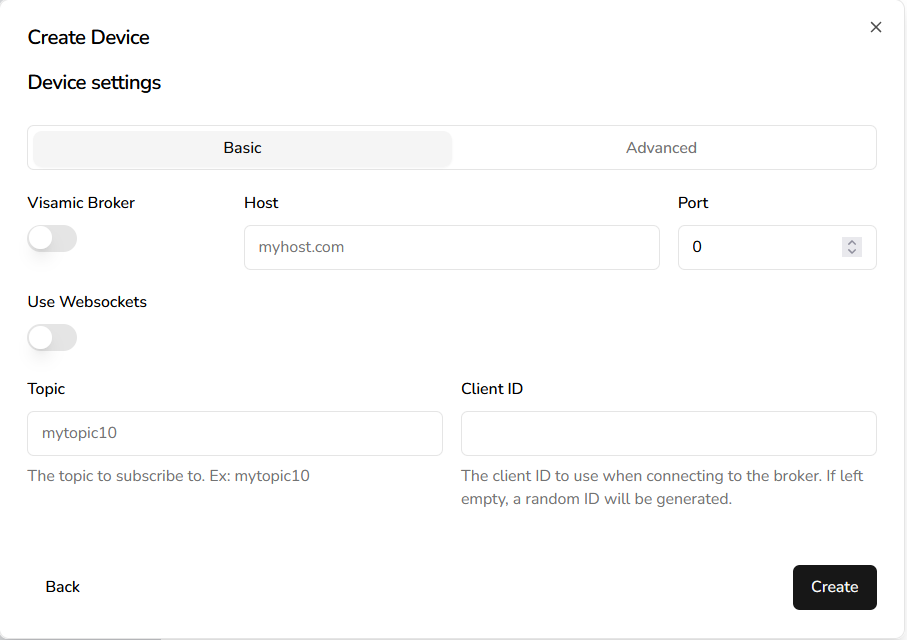
You can choose the Visamic broker or an external broker.
Visamic broker
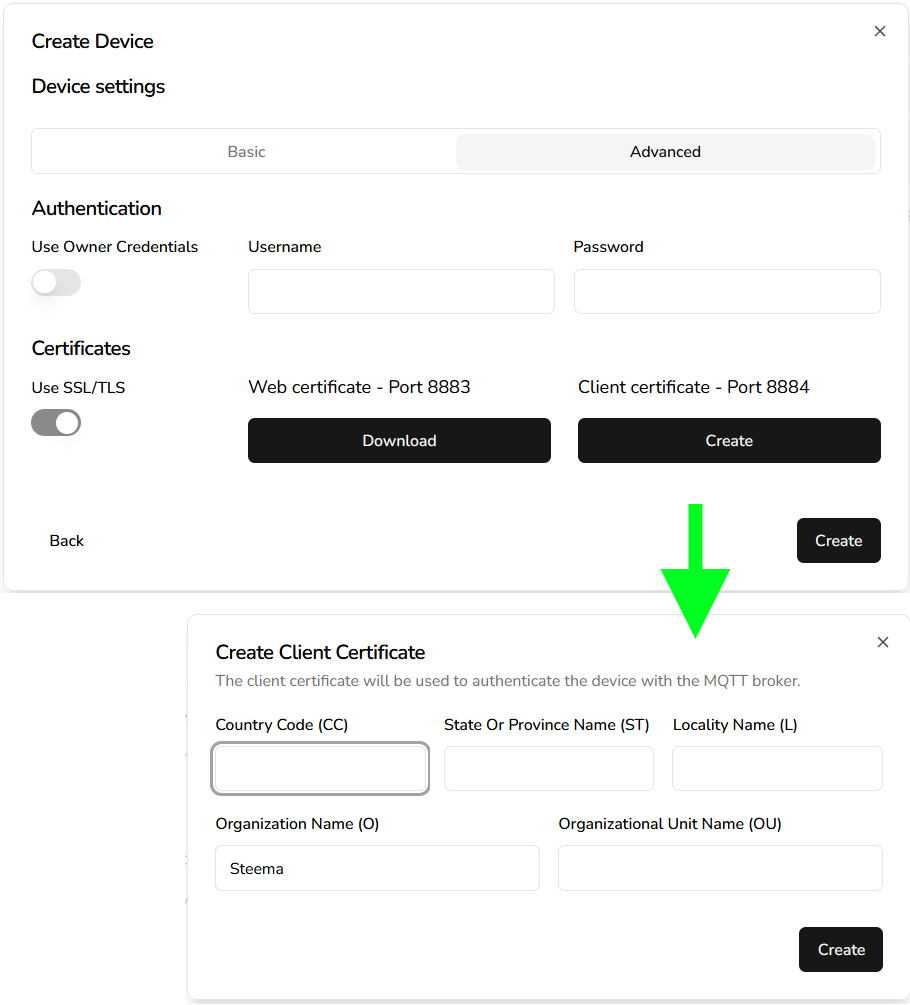
The Visamic broker uses authentication and MQTT over TLS. If the form offers Use owner credentials, follow the current application guidance for choosing between the account credentials and dedicated MQTT credentials.
Certificate
If the broker requires a certificate, download the certificate provided by the connection page and configure your MQTT client to trust it:
Test Visamic broker
Save the input so the broker can use the configured credentials. In one terminal, subscribe to the topic:
mosquitto_sub -u <username> -P <password> -h visamic.com -p 8883 -t <topic> --cafile certs/visamic.pem
In another terminal, publish a message to the same topic:
mosquitto_pub -u <username> -P <password> -h visamic.com -p 8883 -t <topic> --cafile certs/visamic.pem -m "Hello Visamic"

The Hello Visamic message should appear in the subscriber terminal. This confirms that the publisher and subscriber can reach the broker with the selected credentials and certificate:

This only verifies the MQTT connection. To display values in a dashboard, configure the attributes and send a payload using the JSON data format.
External broker
For an external broker, enter its hostname and port. If the broker requires authentication, enter a username and password. TLS and certificate settings must match the broker configuration:
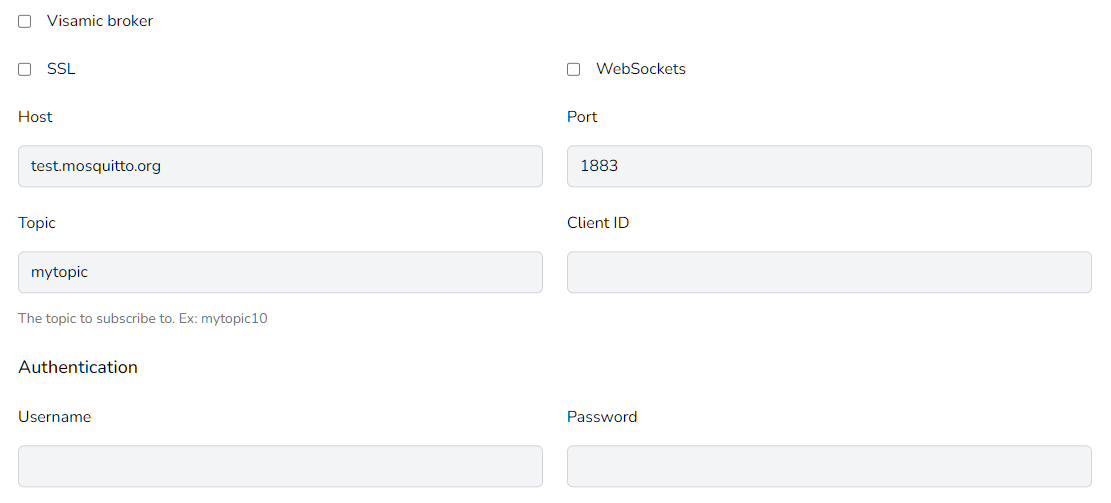
When the broker uses TLS, upload or select the certificate required by that broker.
Test an external broker
For a simple test, you can use a public broker such as test.mosquitto.org. Public brokers are shared services: do not send private or production data, and confirm the current connection details before using them.
Unencrypted and unauthenticated
Use these values as an example configuration:
- Broker:
test.mosquitto.org - Port:
1883 - Topic:
your_topic(use the same topic when publishing) - TLS: Off
We are running an "unencrypted, unauthenticated" test source here with a few attributes. You can connect if you'd like to try it:
- broker: test.mosquitto.org
- port: 1883
- topic: various2021
- attributes: PZ, TMP, LT, ACC (all numeric)
- TLS: Off
Unencrypted and authenticated
Use these values as an example configuration:
- Broker:
test.mosquitto.org - Port:
1884 - Username:
rw - Password:
readwrite - TLS: Off
- Topic:
your_topic(use the same topic when publishing)
Encrypted and authenticated
Use these values as an example configuration:
- Broker:
test.mosquitto.org - Port:
8885 - Username:
rw - Password:
readwrite - TLS: On
- Topic:
your_topic(use the same topic when publishing)
JSON payload
Use the format described in the JSON data format reference. The example fields u, v, and t must match the payload-field configuration used by the input.
Connection checklist
Before troubleshooting, verify that:
- the publisher and Visamic use the same broker and topic;
- the port and TLS setting match the broker;
- the username and password are correct when authentication is enabled;
- the certificate path is valid when TLS is enabled; and
- the JSON attribute names match the attributes configured in the Thing.